
Inside this release
1 change groupsChange 01
December 2025 Update
We're excited to share our December 2025 release, bringing significant improvements to how you manage support tickets and interact with your dashboard. This update focuses on enhancing your daily workflow with smoother navigation, real-time ticket visibility, and powerful tools for consistent support responses.
🎯 Key Highlights
Enhanced Session Management
We have improved the session management in the dashboard, so you can now navigate through your dashboard without sudden interruptions.
Live Ticket Viewing
We've introduced a new Tickets tab in your dashboard that gives you real-time visibility into all your active tickets. No more switching between Discord and your dashboard—everything you need is right at your fingertips.
See all your open and claimed tickets with essential information at a glance. Each ticket shows its current status with color-coded badges, making it easy to identify what needs attention. Find specific tickets quickly with powerful filtering options—search by ticket ID, user, panel name, or status. Enable auto-refresh to keep your ticket list updated automatically, or refresh manually whenever you need the latest information.
Tags System
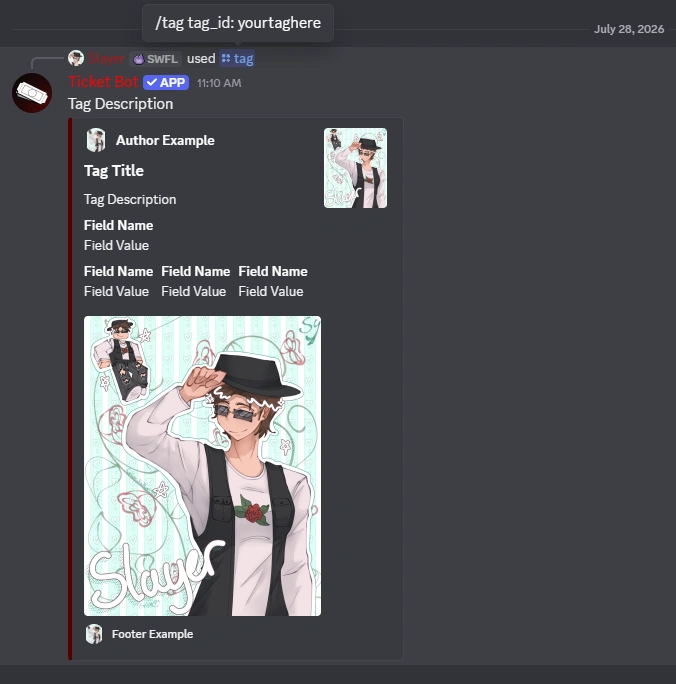
Introducing the Tags system—a powerful way to create reusable responses for your server. Create custom tags that anyone can use in your Discord server to quickly send consistent, professional responses.
Create tags through the dashboard with either plain text or rich embeds. Rich embeds give you full control over the visual presentation—customize colors, add images, and structure content with fields to match your server's style. Use `/tag` with the tag ID to send these responses, making common replies quick and consistent.
Every tag tracks usage statistics, which you can view directly in the dashboard.
🚀 What This Means for You
These updates create a more efficient support workflow with smoother navigation, real-time ticket visibility, and standardized responses through tags. Less time navigating means more time helping users.
🔄 Getting Started
These updates have been rolled out to the dashboard ready for use!
To start using the new tickets tab, navigate to your server dashboard and click on the "Tickets" tab in the sidebar. You'll see all your active tickets with filtering options at the top. Enable auto-refresh if you want the list to update automatically every 30 seconds.
To create your first tag, head to the Tags section in your dashboard and click "Create Tag". Add your content or configure a rich embed, and save. Anyone can then use `/tag` with the tag ID to send the response in Discord.