3.6. Tags
Tags are reusable message snippets that can be executed using the /tag command. When you create a tag with a specific ID/name, users can execute it by typing /tag tag_idin Discord. Tags are perfect for frequently asked questions, common responses, or any information you want to make easily accessible.
Understanding Tags
Tags work through the /tag command. When you create a tag with the ID "rules", users can execute it by typing /tag rules in Discord. The command includes autocomplete, making it easy to find and select tags. When executed, the tag sends its configured content (either plain text or a rich embed) to the channel.
Note: Tag names must be unique per server and will become the command name. Choose names that are clear and easy to remember. Tag names are case-insensitive when used as commands.
Viewing Tags
The Tags page displays all your server's tags in a grid layout. Each tag card shows:
| Information | Description |
|---|---|
| Tag Name | The tag ID/name used with the /tag command |
| Embed Badge | Shows "Embed" if the tag uses embed format instead of plain text |
| Content Preview | A preview of the tag's content (title/description for embeds, or text content for plain text tags) |
| Usage Count | How many times the tag has been executed |
| Last Updated | The date when the tag was last modified |
| Actions | Edit or delete the tag using the dropdown menu |
Creating Tags
Tags can be created in two ways:
Note: You can create tags either through the web dashboard (recommended for embed support and advanced features) or via the /managetags add command in Discord (simpler, text-only).
Via Web Dashboard
To create a new tag through the dashboard:
- Navigate to the Tags page and click the "Create Tag" button
- Fill in the basic tag information (name and content)
- Optionally enable embed mode and configure embed settings
- Check the live Discord preview beside the editor. It updates as you change text, color, author, fields, images, and footer settings
- Click "Create Tag" to save. The tag will immediately be available via the
/tagcommand
Live preview: Both Create Tag and Edit Tag show the message as it will appear in Discord. The preview is visual guidance; Discord still performs final URL, length, and embed validation when the tag is sent.
Via Discord Command
You can also create tags using the /managetags add command in Discord:
- Type
/managetags addin any channel - Enter the tag_id (the name/ID for the tag) and the content (the message to send)
- Submit the command. The tag will be created and available via
/tag tag_id
Note: The /managetags command only supports plain text tags. To create tags with embeds and advanced formatting, use the web dashboard. Tag IDs can only contain lowercase letters, numbers, hyphens, and underscores.
Tag Configuration
Tags can be configured in two modes:
Plain Text Mode (Default)
In plain text mode, the tag sends a simple text message when executed. This is the simplest option and works well for short responses or information.
Configuration Options:
- Tag Name: The command name (required, must be unique)
- Tag Content: The text message to send (required)
Embed Mode
In embed mode, the tag sends a rich Discord embed with customizable appearance. Embeds support titles, descriptions, colors, images, and more, making them perfect for formatted information, rules, or announcements.
Configuration Options:
- Tag Name: The command name (required)
- Tag Content: Fallback text if embed fails to load (required)
- Embed Title: The main title of the embed
- Embed Description: The main content/description of the embed
- Embed Color: The color of the embed's left border (hex color code)
- Author: Author name, URL, and icon
- Thumbnail: Small image displayed in the top-right corner
- Image: Large image displayed at the bottom of the embed
- Footer: Footer text and icon
- Fields: Additional structured fields (add via the user-friendly interface)
Embed Settings Explained
When using embed mode, you have access to extensive customization options:
Basic Embed Settings
- Embed Title: The bold text at the top of the embed. This is the main heading.
- Embed Description: The main body text of the embed. Supports Discord markdown formatting.
- Embed Color: The color of the vertical bar on the left side of the embed. Use hex color codes (e.g., #560000).
Author Settings
The author appears at the top of the embed, typically showing who created or owns the content:
- Author Name: The text displayed as the author
- Author URL: Optional link that makes the author name clickable
- Author Icon: Small icon displayed next to the author name
Image Settings
Embeds support two types of images:
- Thumbnail: A small square image displayed in the top-right corner of the embed
- Image: A large image displayed at the bottom of the embed, below all other content
Note: Image URLs must be publicly accessible and point to valid image files. Discord supports JPG, PNG, GIF, and WebP formats.
Footer Settings
The footer appears at the bottom of the embed:
- Footer Text: The text displayed in the footer
- Footer Icon: Small icon displayed next to the footer text
Embed Fields
Embed fields allow you to add structured information in a key-value format. You can add fields using the user-friendly interface in the dashboard:
To add embed fields:
- Expand the "Embed Fields" section in the embed settings
- Click "Add Field" to create a new field
- Enter the Field Name (up to 256 characters) - this is the label/title of the field
- Enter the Field Value (up to 1024 characters) - this is the content of the field
- Optionally check "Display inline" to make the field display side-by-side with other inline fields
- Click "Add Another Field" to add more fields (up to 25 fields total)
Inline vs Non-Inline Fields:
- Inline fields (checkbox checked): Display side-by-side, up to 3 per row. After 3 inline fields, Discord automatically starts a new row.
- Non-inline fields (checkbox unchecked): Each field takes a full line, making them ideal for longer content or important information.
Tip: You can add up to 25 fields per embed (Discord's limit). Each field name can be up to 256 characters and each field value can be up to 1024 characters. Use inline fields for compact information and non-inline fields for detailed content.
Editing Tags
To edit an existing tag:
- Find the tag you want to edit on the Tags page
- Click the actions menu (three dots) and select "Edit"
- Modify any settings you want to change
- Click "Save Changes" to update the tag. Changes take effect immediately
Note: You cannot change a tag's name after creation. If you need to rename a tag, you'll need to create a new tag with the desired name and delete the old one.
Deleting Tags
To delete a tag:
- Find the tag you want to delete on the Tags page
- Click the actions menu (three dots) and select "Delete"
- Confirm the deletion if prompted
Warning: Deleting a tag cannot be undone. The tag command will immediately become unavailable, and any attempts to use it will result in an error message.
Using Tags
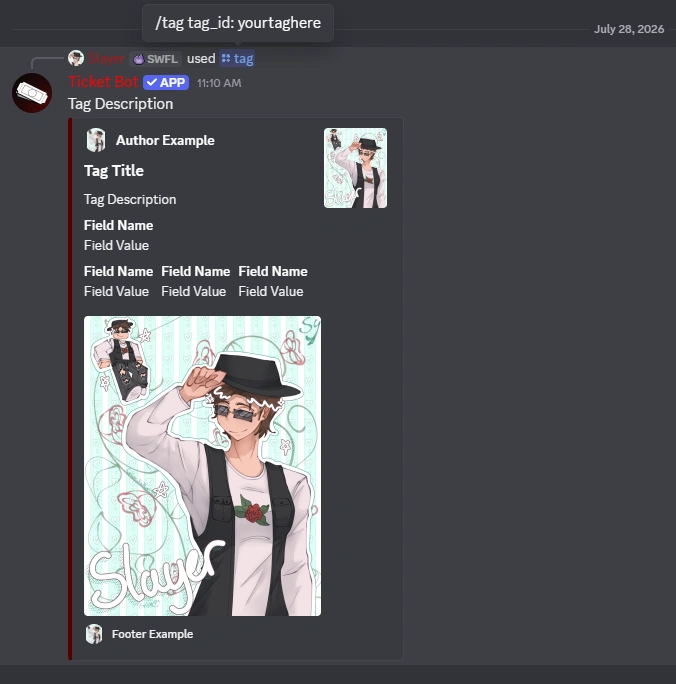
Once created, tags can be executed using the /tag command:
- Type
/tagin any channel where the bot has permission to send messages - Start typing the tag ID/name in the "tag_id" parameter field. Discord will show matching tags in the autocomplete menu
- Select the tag from the autocomplete list or type the full tag ID/name
- Press Enter to execute the tag. The bot will send the tag's content to the channel
- The usage count is automatically incremented each time the tag is executed
Example: If you create a tag with the ID "rules", users can execute it by typing/tag rules. The autocomplete will help users find and select the tag.
Usage Statistics
Each tag tracks how many times it has been used. This information is displayed on the tag card and can help you:
- Identify which tags are most useful to your community
- Find tags that might need updating or removal
- Understand what information your users are looking for most often
Best Practices
Here are some tips for creating effective tags:
Choose Clear Names
Use descriptive, easy-to-remember names. For example, "rules" is better than "r", and "faq-payment" is clearer than "faq1".
Use Embeds for Important Information
Embeds are more visually appealing and easier to read. Use them for rules, announcements, or any information that benefits from formatting.
Keep Content Updated
Regularly review and update your tags to ensure the information is current and accurate. Check the "Last Updated" date to see which tags might need attention.
Organize with Categories
Use consistent naming patterns to group related tags. For example, "faq-general", "faq-billing", "faq-technical" makes it easy for users to discover related information.
Tip: Tag IDs/names are case-insensitive and can only contain lowercase letters, numbers, hyphens, and underscores. Choose clear, memorable names that are easy to type and remember.