Bot Configuration: Web Dashboard
Head over to the dashboard at ticketsbot.org/dashboard. You will be asked to login with Discord - simply click Authorize and you'll be taken back to the dashboard.
A list of servers will show up, which you and the ticketbot share, if you have not been added as an admin with /addadmin command yet you will get a message saying "Bot installed, no dashboard access" simply ask the server owner or if you are the owner to run /addadmin on your user then log out and log back in.
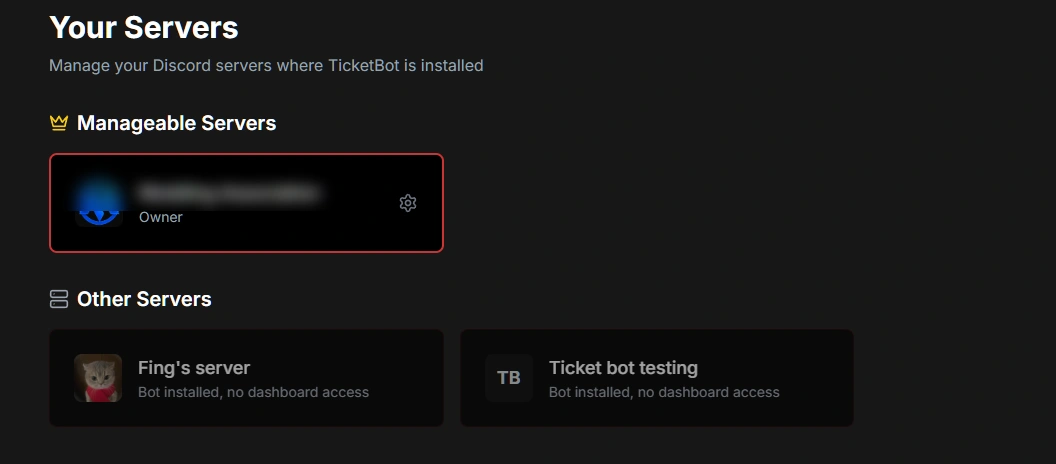
You'll be taken to the settings page as follows:

You'll first want to pay attention to the main Settings card. Here you can edit the following settings:
Per User Simultaneous Ticket Limit
This is the amount of tickets that a single user can have open at a single time.
For example, if you set this value to 1, a user will be able to open and close tickets an infinite amount of times, but only have a single ticket open at once. This value does not affect the total amount of tickets that can be opened at once in a server.
We don't have any limits on the amount of tickets that a server can have open at once. However, note that Discord only permits a total of 500 channels to exist in a server at once, and 50 channels to exist at once in a category. This means that you can move tickets to a new category if one gets filled, however you are limited to 500 channels overall by Discord.
Allow Users To Close Tickets
This option specifies whether users are allowed to close their own tickets. If unchecked, only your support staff & administrators will be able to close them.
Ticket Close Confirmation
This option specifies whether Tickets will send a confirmation message when closing a ticket via the close reaction. If checked, Tickets will send the following message after reacting:
Simply click the confirm close reaction to confirm you want to close the ticket.
Close confirmation does not apply to tickets closed using the slash command /close.
Welcome Message
The welcome message is the message displayed in the Ticket as soon as the user opens it:
Note: the message has a maximum limit of 1024 characters due to Discord limitations.
You may make use of placeholders in your welcome message. You can view a list of placeholders here.
You may also use discord message formatting to include links to channels, emojis, roles, or usernames in your welcome message. First, you will need to have discord developer mode turned on - in your personal discord account settings > advanced > discord developer mode. Second, you can right click any channel name, username, message, etc and choose Copy ID. Third, use the structure section of discord's message formatting chart to include it in your welcome message.
The title of the embed will based off of the title of the ticket panel.
Transcripts Channel
When Tickets are closed, a transcript will automatically be recorded, encrypted, and stored in cloud based object storage - with no user interaction required.
A message, similar to the one following, will also be sent to your transcripts channel to notify you the ticket was closed and provide you with a link to the dashboard to view the archive:
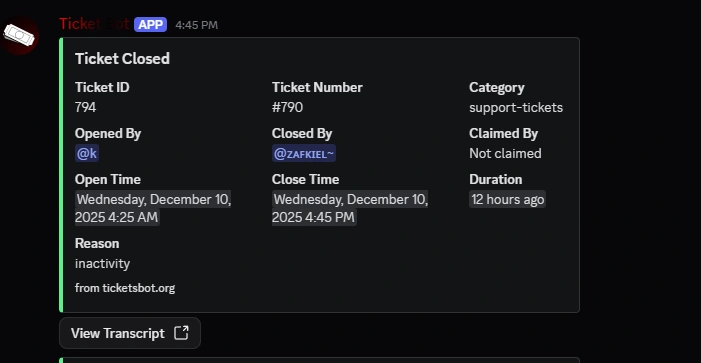
This message will also be sent via direct messages to the user who opened the ticket. It is not possible to disable this functionality since we believe it is important for transparency purposes that users are also able to access the transcripts.
Channel Category
Designates the channel category that tickets will be created under. If you are unsure what a channel category is, Discord has a guide explaining them available here.
Overflow Category
Discord has an imposed limitation that each Channel Category can only hold 50 channels. Once you hit this limit, Tickets bot will fail to be able to open more ticket channels for you and your server members. To help rectify this, you can set an Overflow Category. This is a category that the ticket channels will open in once your selected Channel Category has hit the Discord imposed limit.
Naming Scheme
Defines how the ticket channels should be named. Currently, there are 5 options:
ticket-numberticket-usernameusername-ticketnumber-usernameusername-number
Submission
Once you are done setting each setting press the save changes button to save them.